Product walkthrough · UK golf-club pro-shops
Find the right stock. Make the next move clear.
AutoStockPilot gives a golf-club shop team one private place to configure products, variants, displays and stockroom locations. Staff use saved records to find stock or review a top-up, with people confirming counts and picks before anything changes.
Illustrative shop and sample records; no participating retailer is shown.
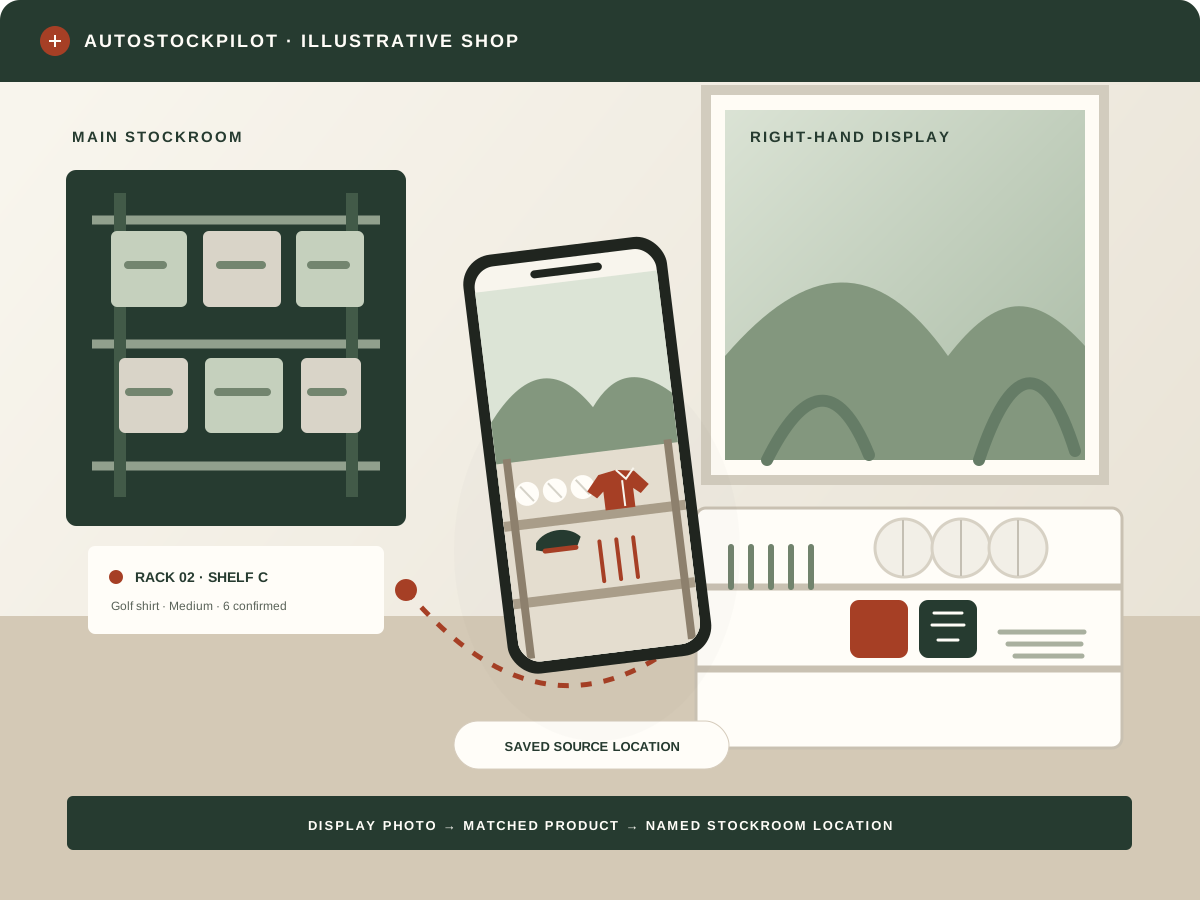
One manager setup flow
Two staff workflows
Counts change only after confirmation
For the owner or manager
Set up the stock records your staff will use.
Start with one item, then build out the shop deliberately. Photo setup helps with a first record; a manager still checks the details and enters the real counts.
- 01
Create a private shop workspace
Name the club or pro-shop, then invite the team members who need access.
- 02
Set up a first item with photos
Use the guided first-item flow to add product, display and stockroom photos. Suggestions use the display and stockroom photos; they do not configure an entire shop range.
- 03
Review, count and confirm
Review or edit suggested product, variant and location details. Enter the counted stockroom quantity and display target, confirm the location, then save the item.
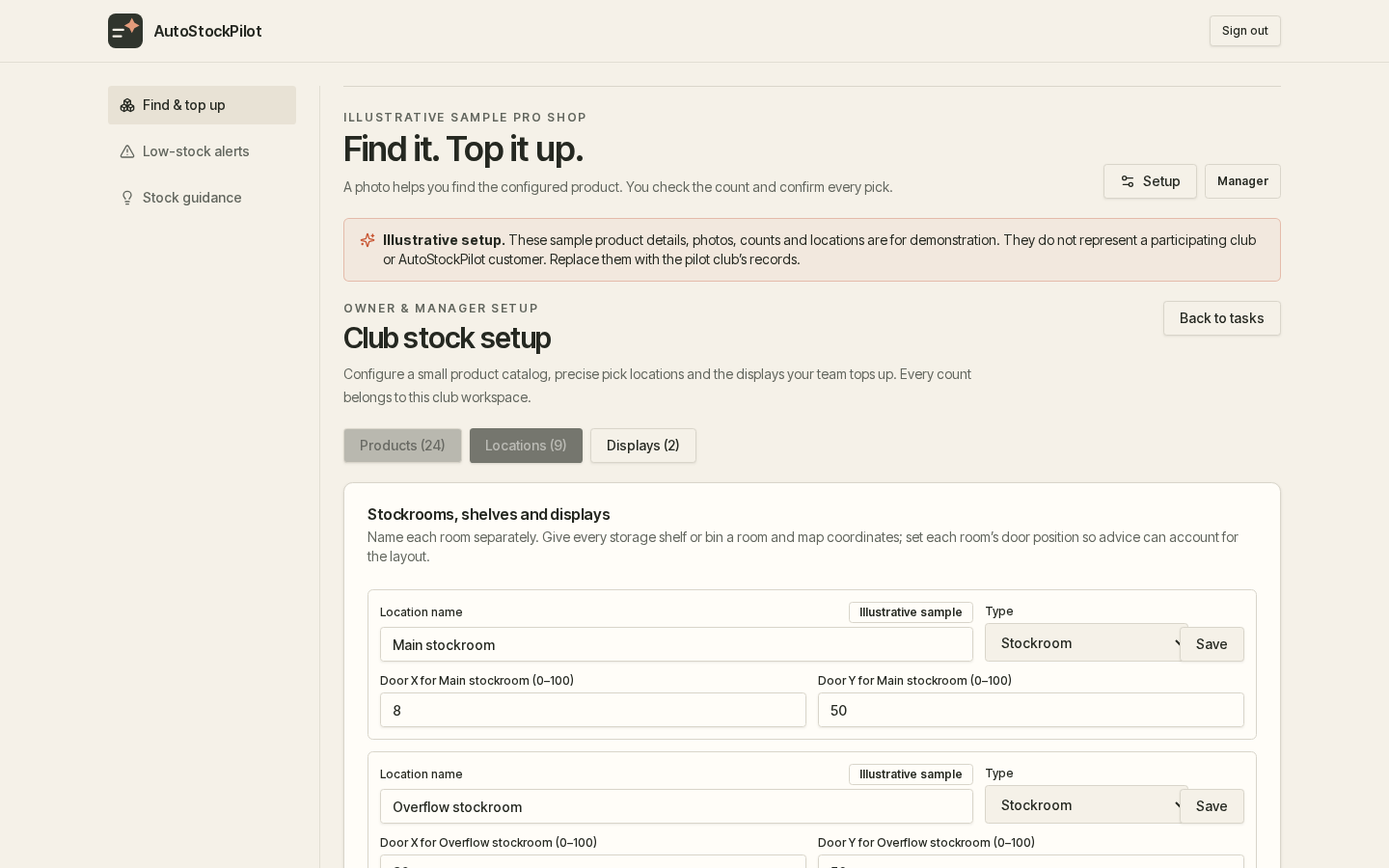
Map the back of house for people who know the shop.
Name each stockroom, set its door position, then place named shelves or bins within that room. Maintain separate records for each size or other variant, displays and their targets, team access, and a low-stock threshold for saved stock levels.
The map is a manager setup view. Staff Find stock results show saved location names and confirmed quantities, not an in-app map.
Staff workflow 01
Find stock by product and variant.
- 01
Choose Find stock
Photograph a configured product or choose its saved reference photo. A staff member can ask, “Do we have this shirt in medium?”
- 02
Check the suggested record
AI suggests a match from this retailer’s configured products and variants. Staff choose the correct record or retry when the photo or match is unclear.
- 03
Read the saved locations
The result lists the last confirmed quantity at each saved location by name. Find stock is a lookup; it does not change stock.
Example question: “Do we have this shirt in medium?” Staff see saved location records such as a named stockroom shelf or bin, with its last confirmed count.
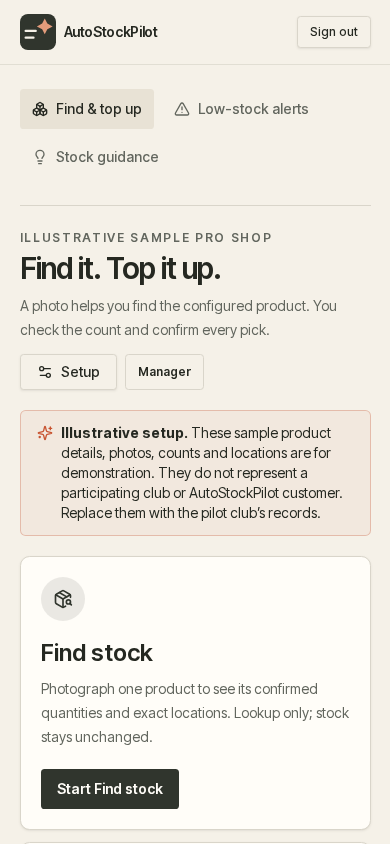
Staff workflow 02
Top up a display, with every pick reviewed.
- 01
Choose a configured display
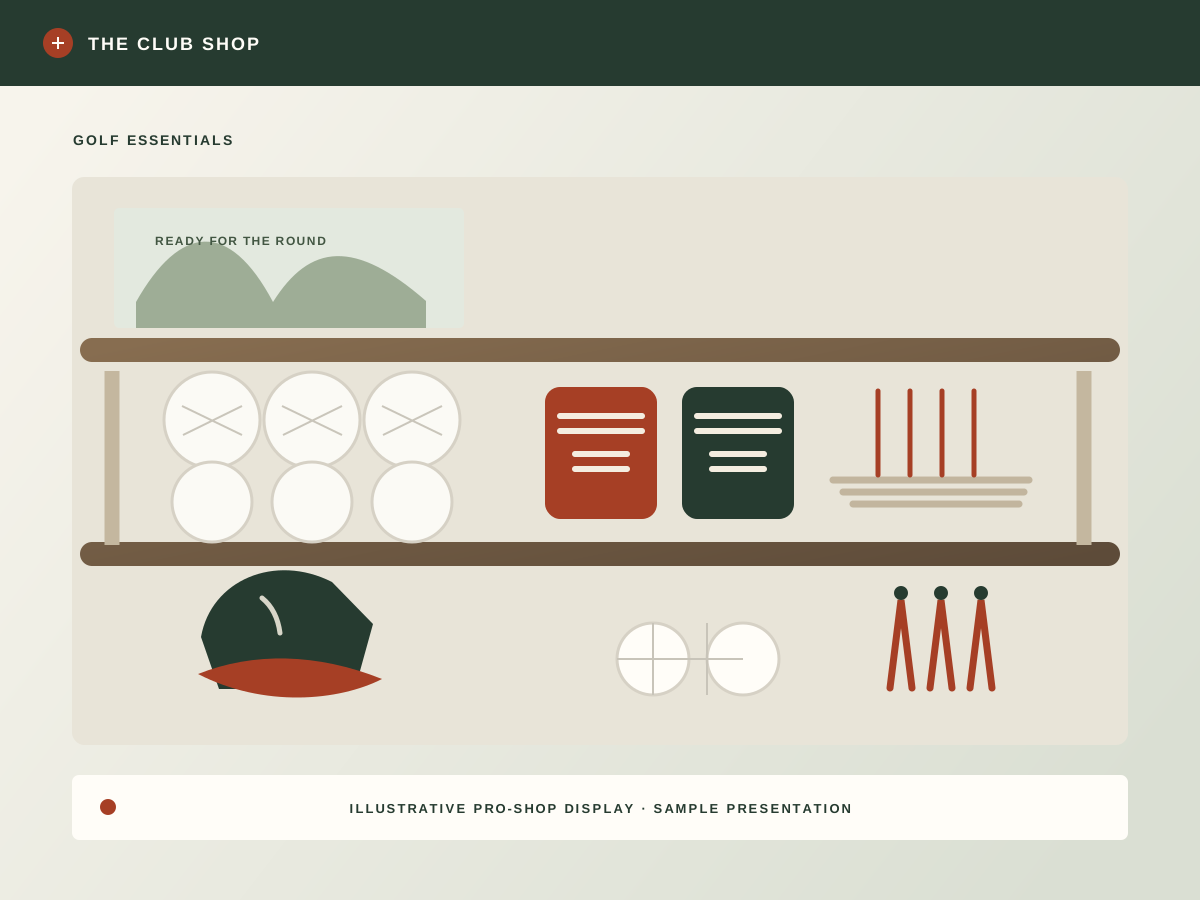
Choose Top up, then photograph a display or select one already configured in the workspace.
- 02
Count what is on the display
Check and enter the visible quantity yourself. The photo can suggest a display match, but it never estimates a stock count.
- 03
Review the proposed picks
AutoStockPilot uses each saved variant, its display target, the count you entered, confirmed available stock and the exact source location. Review the saved product photo where available, pick quantity, projected stockroom balance and any shortfall; adjust the picks if needed.
- 04
Confirm to update stock
Staff review the locations and quantities, then explicitly confirm. Only confirmation updates the display and source counts.
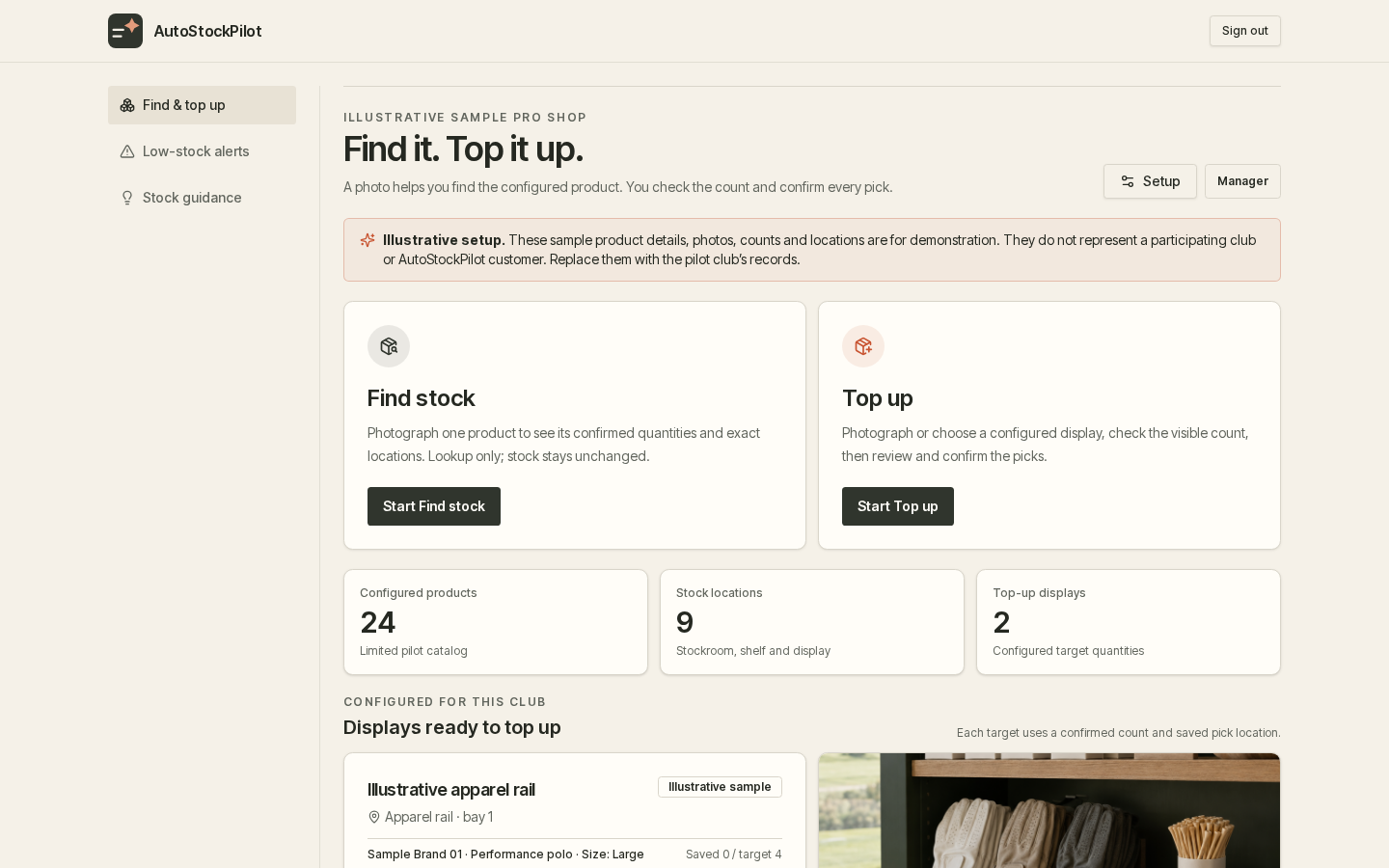
Owner and manager controls
Low-stock thresholds use saved counts.
Owners and managers set a threshold for a saved stock level. When a confirmed count crosses that threshold, AutoStockPilot records the crossing and emails them. A photo does not estimate the count, and an unconfirmed suggestion does not update inventory.
This walkthrough covers the current first model: configured products and variants, saved locations, Find stock and reviewed Top up. Camera-led stock-taking, total stock control, till or POS integration, and automatic purchasing are later V2 ambitions after the first model is proven.
A current product walkthrough
See whether this workflow fits your pro-shop.
This page supports AutoStockPilot’s pre-outreach brand, usability and customer readiness audit. It does not say the audit has passed, and it is not a high-street retail pitch based on pilot results. Outreach remains gated on the separate audit.